HealingMatgo ☰ menu settings guide: changing sound effects, voice, card speed and speech bubbles
Was the game sound too loud, or did the cards move so fast they made you dizzy? In HealingMatgo, you can change the sound, speed and flashy effects to your taste in ‘Settings’ in the ☰ menu at the top left. There are nine settings in all, and they change as soon as you tap them. Let’s go through them one by one.
1. How to open the menu
Tap the three horizontal lines (☰) at the very top left, and a ‘Menu’ window opens in the middle of the board. The left column is Settings; the right column is My info and Help. To close it, tap ☰ again, press Esc on the keyboard, or click an empty spot outside the menu.
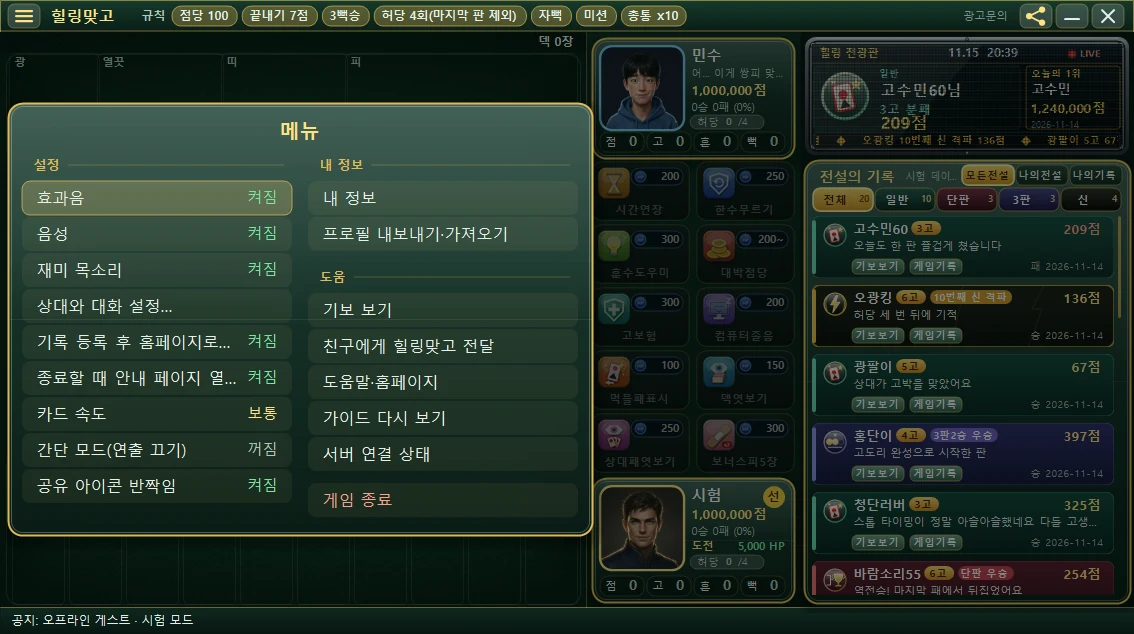
When you tap a setting, its value changes right away and the menu stays open. The exception is ‘Opponent chat settings…’, which takes you to a different settings window. You can change several settings in a row and close the menu at the end. The current value is shown at the right end of each line.
2. The 9 settings at a glance
| Item | Available values | What it does |
|---|---|---|
| Sound effects | On / Off | All card sounds and effect sounds |
| Voice | On / Off | Character voices (Go, Stop, etc.) |
| Fun voice | On / Off | Funny alternate lines that fit the situation |
| Opponent chat settings… | Tap to open the settings window | Opponent speech bubbles, commentary, feature tips, memory settings (see section 7) |
| View on website after registering record | On / Off | Shows your record post in an app window once it goes up on the website (see section 8) |
| Open info page on exit | On / Off | Opens an info page in your browser when you quit the game (see section 9) |
| Card speed | Fast / Normal / Slow | Speed of card movement (changes in order each time you tap) |
| Simple mode (effects off) | On / Off | Turns off flashy screen effects |
| Share icon sparkle | On / Off | The share icon sparkling now and then |
3. The 3 sound settings
① Sound effects
Turns all sound effects on or off, such as the sound of playing a card and the effect sounds at the end of a round. If you’re playing somewhere quiet or the sound bothers you, leave it ‘Off’.
② Voice
These are the voices of the opponent character and your own character saying things like ‘Go!’ and ‘Stop!’. If you turn it off, the characters make no voice sounds.
③ Fun voice
These are funny alternate lines that play depending on the situation. If you turn this off, only the basic voices play. This setting stays as it is even after you close and reopen the game.
Sound effects and voice can be turned on and off separately. For example, if you want to hear the character voices but the sound effects bother you, turn off only ‘Sound effects’. The reverse works too.
4. Card speed — Fast · Normal · Slow
Each time you tap the ‘Card speed’ line, it cycles in the order Fast → Normal → Slow. The starting (default) value is ‘Normal’.
- Fast — cards zip around. For people who want rounds to move quickly.
- Normal — the default.
- Slow — cards move slowly. Good if you want to see clearly how the cards are laid out.
If you’re new to Hwatu, or the cards are too fast to follow, we recommend ‘Slow’.
5. Simple mode (effects off)
HealingMatgo shows flashy effects at moments like Jjok, Ppeok and Go: sparkling dust, light, and a red pulse at the edge of the screen. If you set Simple mode to ‘On’, these effects are turned off and the screen becomes calmer. Try it if your eyes tire easily or the screen feels too flashy.
For ‘Simple mode (effects off)’, ‘On’ means the effects are turned off. So if you want the flashy screen, ‘Off’ (the default) is the one for you.
6. Share icon sparkle
The share icon at the right of the title bar (three dots joined by lines) sparkles now and then, gently nudging you to share the game with a friend. If the sparkle bothers you, set it to ‘Off’. You can still tap the icon to share with a friend as usual.
The sparkle follows these rules.
- It starts to appear 5 minutes after you log in.
- It sparkles at intervals of 8 to 12 minutes, up to 6 times a day.
- If you tap the icon once that day, it doesn’t sparkle any more that day.
- Right after a win, it may sparkle one more time.
7. Opponent chat settings…
This item isn’t an on/off switch; tapping it takes you to the ‘Opponent chat settings’ window. Here you can turn on or off the opponent’s speech bubbles and emotion effects, how often bubbles appear, commentary, how talkative the opponent is, feature-tip bubbles, the feature that remembers you, and self-learning phrases. All of them start as ‘On’. Tapping ‘← Back to menu’ at the top of the window takes you back to the main menu. Each item is explained separately in the article about chatting with your opponent.
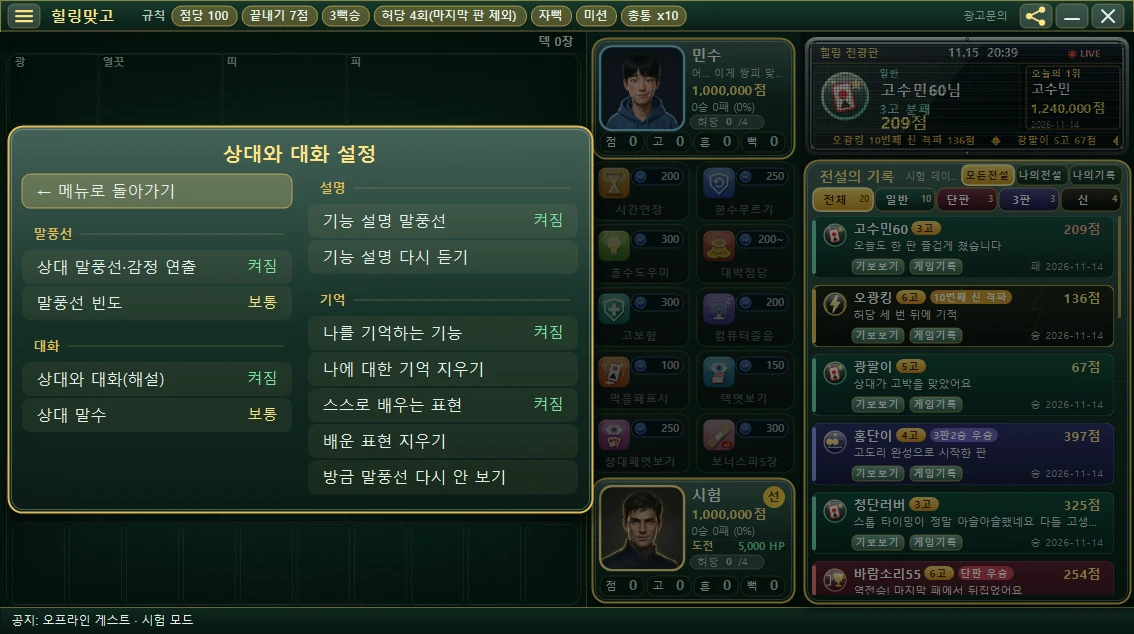
8. View on website after registering record
When a round ends, your record goes up to the server and your record post is created on the website, the game shows that post in a small app window. The value starts as ‘On’. This window attaches to the right column of the game screen (where the ticker board and the Hall of Legends are) and moves along when you move the game window. So that it doesn’t pop up suddenly during play, it appears only during the break after a round, when the start button is visible. If you don’t like windows popping up, change it to ‘Off’. For the conditions for a record to go up, see the Hall of Legends article.
The app window opens when Chrome or Edge is available. In an environment where that isn’t possible (for example, if you only use Firefox), it opens in a new tab of your usual browser instead. No record post is created for a round played without an internet connection.
9. Open info page on exit
This setting opens a HealingMatgo info page in a new tab of your web browser when you quit the game. It starts as ‘On’. It opens only when you’re connected to the internet, and it’s skipped if you aren’t. It never makes the game wait before closing. If you don’t need it, change it to ‘Off’.
10. Recommended combinations
| For people who… | Recommended settings |
|---|---|
| Want quiet | Sound effects Off, Voice Off |
| Find cards too fast to follow | Card speed ‘Slow’ |
| Get tired eyes from the flashing screen | Simple mode ‘On’ |
| Find the opponent’s speech bubbles distracting | In ‘Opponent chat settings…’, set bubble frequency to ‘Sometimes’ and opponent talkativeness to ‘Less’, or turn the bubbles off |
| Want a flashy, broadcast-style experience | Leave everything at the defaults |
The rest of the menu items (My info, profile export/import, Help, replaying the guide, and so on) are explained in the ☰ My info, Help and Quit article.