HealingMatgo ☰ menu guide: My info, profile backup, Help and quitting the game
The right column of the ☰ menu has the My info · Help · Quit game items. The ‘Settings’ for changing sound and speed were already explained in the ☰ menu settings article, so this article goes through the remaining items one by one. Please be sure to read about exporting your profile (backup) and what to watch out for when you quit the game.
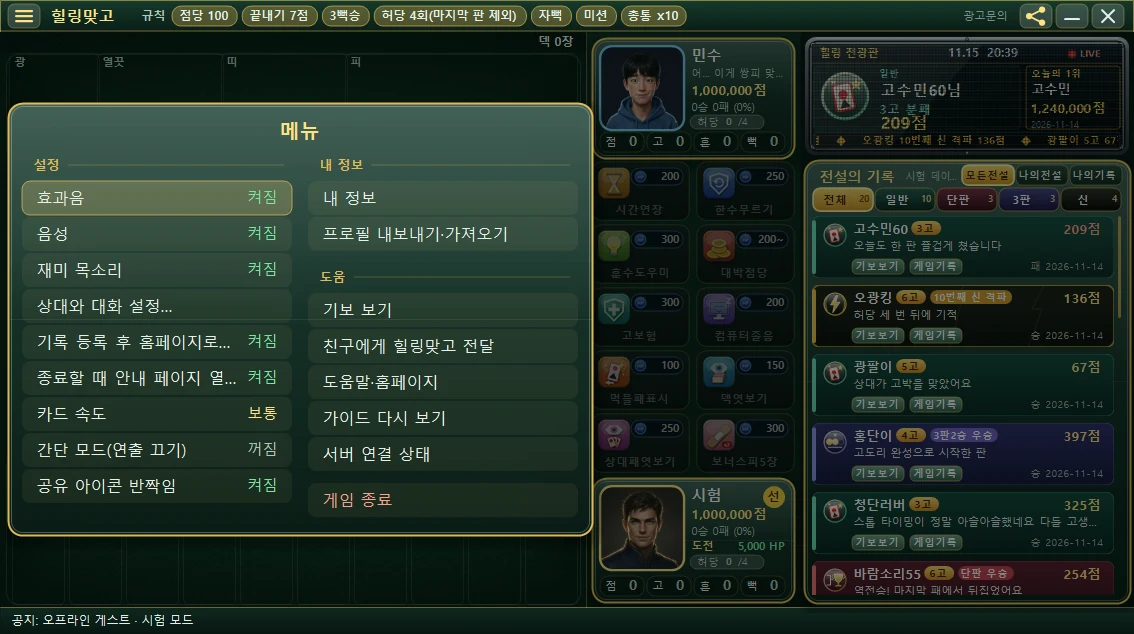
1. My info
When you tap ‘My info’, a window summarizing your profile appears in the middle. Here is what you’ll see.
- Nickname and age group
- Gender (Male / Female; if you haven’t set it yet, it shows ‘Not set’)
- The date and time you agreed to ‘I am not a minor’ (Korea time)
- Your HP (Healing Points) balance
There are buttons at the bottom of the window.
| Button | What it does |
|---|---|
| Gender setting / Change | Each tap switches between male and female. It tells you the recommended character for that gender, but doesn’t change your character automatically. |
| Mode records | Shows a progress-path screen of how far you got in Single Match, Tournament and War of the Gods. |
| Close | Closes the window. |
HealingMatgo doesn’t ask for an email address or phone number when you sign up. Your profile is saved only on your own computer.
2. Export · Import profile (backup, and moving to a new computer)
Your profile (score, HP, items and so on) exists only on this computer. So if you change computers or reinstall Windows, it can be lost. For such times, the ‘Export / import profile’ feature saves your profile to a file. When you tap this item, a window first asks you to choose between ‘Export’ and ‘Import’.
Export (save to a file)
- Choose ☰ → ‘Export / import profile’ → ‘Export profile’.
- Enter the profile password you use now, one more time.
- When you choose where to save, a file with the extension .hmgprofile is created. This file is locked with your profile password.
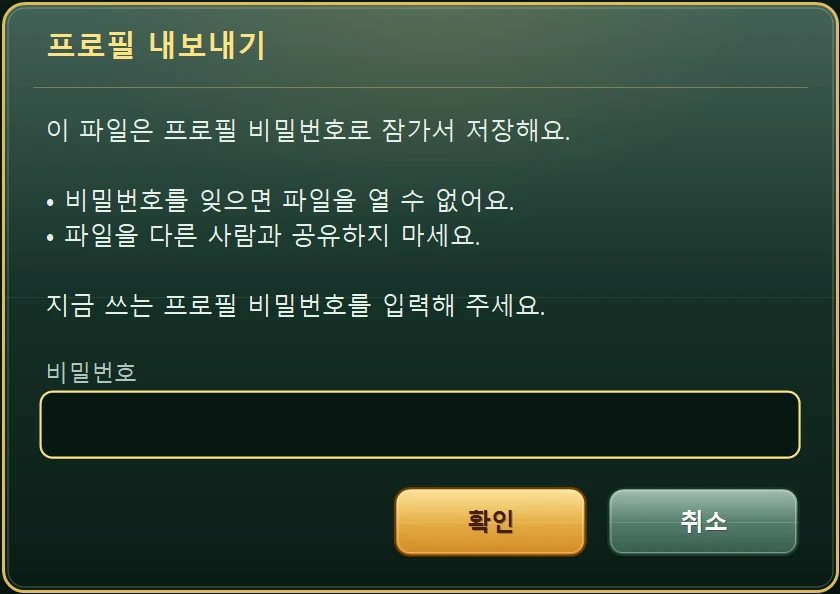
If you forget the password, you can’t open the file. Also, don’t share the file with other people. If a round is in progress after the opponent has called Go, you’ll see a notice telling you to do this ‘after the round ends’.
Import (load from a file)
- Choose ‘Import profile’ and select the file you saved.
- Enter the password you used when you made the file.
- If the same profile already exists on this computer, a comparison window appears. Look at the score, HP, round number and last-saved time on both sides, then choose ‘Keep this PC’s’, ‘Replace with file’ or ‘Cancel’.
- If it’s a different profile that already has the same nickname, you’ll be asked to enter a new nickname.
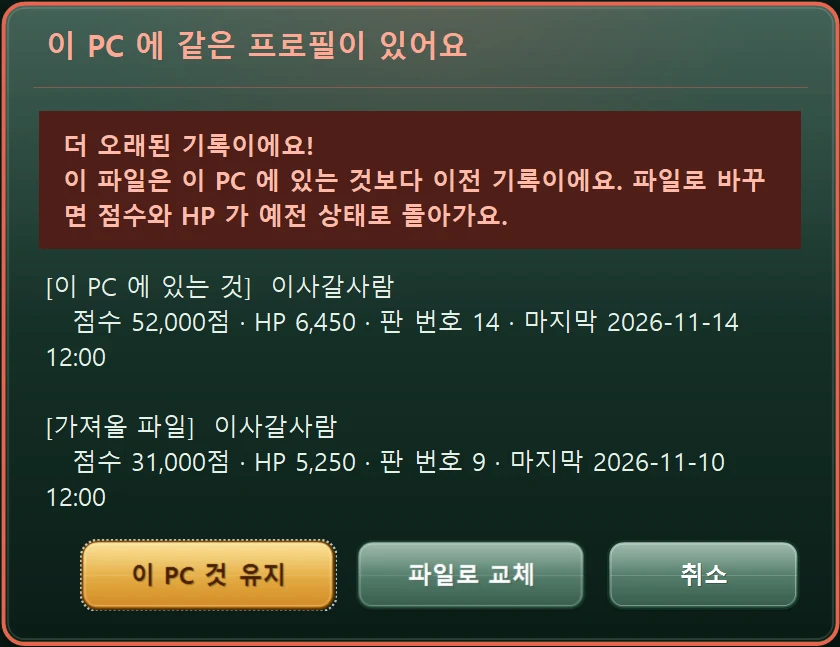
If the file you’re importing holds an older record than the one on this computer, a warning appears. Switching to that file sends your score and HP back to the older state, so if you aren’t sure, choose ‘Keep this PC’s’.
The log-in screen also has an ‘Import profile’ button, so on a new computer you can import before logging in. Signing up and forgotten passwords are covered in the log-in, sign-up and profile article.
3. The 5 Help items
| Item | What it does |
|---|---|
| View game record | A selection window appears. Choose from ‘Open file’ (a .hmg or .gbo file), ‘Recent …’ (up to 5 recently opened game records), or ‘Open game record window’ (an empty game-record window). The game-record window is an independent window that opens separately from the game, so it stays even if you close the game. |
| Share HealingMatgo with friends | A window opens for telling friends about the game by methods such as copying a link, a QR code, email, Band and Facebook. |
| Help & website | Choose from ‘View game rules’, ‘Open website’, ‘Ad inquiries’ and ‘Check for updates’. |
| Replay guide | Shows the arrow guide that appeared when you first started, once more. Details are explained below under ‘Replay guide’. |
| Server connection status | A window that checks whether you’re connected to the server right now. |
The game-record window is covered in more detail in the game-record window article, sharing with friends in the sharing with friends article, and updates in the checking for updates and server connection status article.
The four items inside Help & website
- View game rules — opens the rules guide (jokbo) on the HealingMatgo website.
- Open website — opens the HealingMatgo website.
- Ad inquiries — opens the Contact page on the website. Choose ad inquiries and send your message. For details, see the advertising guide.
- Check for updates — checks whether a new version is available now, the same way the check at game start does. If you’re up to date, it says ‘You’re up to date’; if a new version exists, a notice window appears.
‘View game rules’, ‘Open website’ and ‘Ad inquiries’ open in a small app window attached to the right of the game (where the ticker board and the Hall of Legends are). It moves along when you move the game window, so you can read the article while you play. This is how they open when Chrome or Edge is available; otherwise they open in a new tab of your usual browser.
Replay guide
When you tap ‘Replay guide’, a window appears with two choices. ‘View main screen guide’ shows the 11-step guide of the first screen again right now (possible only on the game waiting screen), and ‘Turn mode guides back on’ shows the Single Match, Tournament and War of the Gods guides again the next time you tap that mode. The guide contents are in the article about the arrow guide that appears when you first start.
Reading the server connection status window
| Row | Meaning |
|---|---|
| Status | Online / Offline, or ‘Not used (offline game)’ |
| Last success | The time of the last successful connection to the server |
| Queue | Shows how record sending is going, in the form ‘N queued · N sent · N excluded’. |
The window also shows this notice: ‘Offline rounds don’t appear in the Hall of Legends. Records that could not be uploaded are sent again automatically.’
4. Quit game
The red ‘Quit game’ at the bottom of the menu is the same as pressing the ✕ button at the top right. The game doesn’t close right away; a confirmation step comes first.
- The first time you quit in this session, a ‘Quit HealingMatgo?’ window appears once. Choose from [Quit], [Continue] and [Tell a friend].
- When you quit, a sound effect that steps down in three notes plays.
- If ‘Open info page on exit’ in the ☰ settings is ‘On’ and you’re connected to the internet, an info page opens in a new browser tab when you quit the game. If you don’t want that, change the setting to ‘Off’ (settings article).
If you try to close the window while a round is in progress in which the opponent has called Go 1 time or more, a confirmation window appears: ‘Right now (name) is winning with N Go and N pts. If you quit midway, the expected score × 3 will be deducted.’ If you quit anyway, 3 times the expected score is taken from your score (not your HP), and it never goes below 0. If the game closes suddenly, the same deduction is applied after a notice the next time you log in. Before the opponent calls 1 Go, nothing is deducted.
When a round is in full swing, the safest thing is to finish it before you quit.