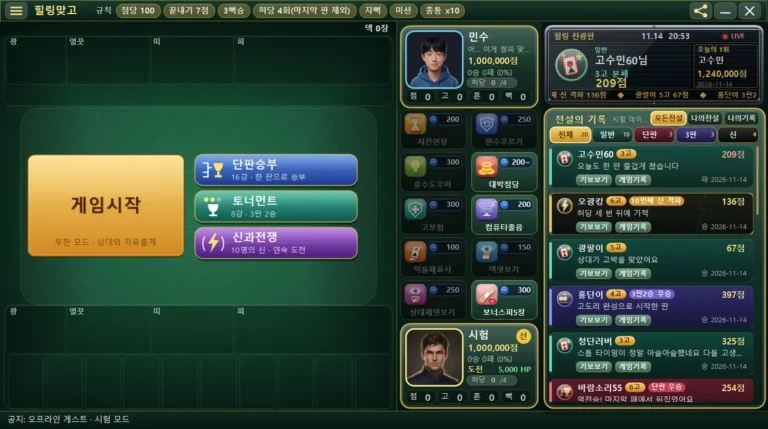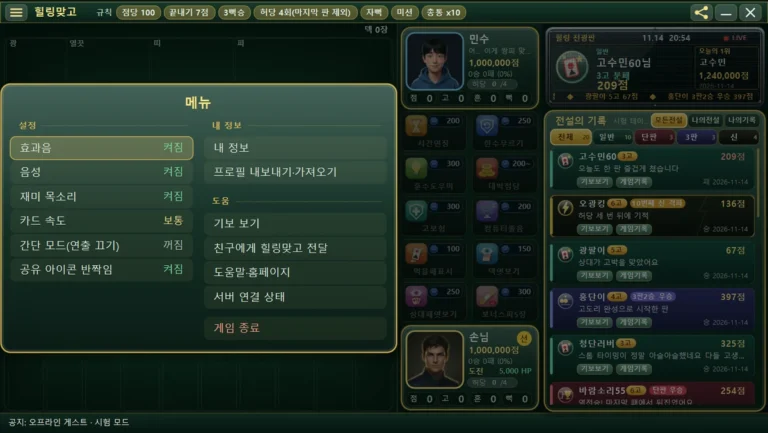
HealingMatgo mid-round pop-ups explained: Go/Stop, Shake, choosing a card to capture, and the result window
While you play, a window suddenly pops up in the middle of the screen to ask a question or tell you a result. At first it’s easy to panic and wonder, ‘What should I press?’ This article explains how to read each kind of pop-up that appears mid-round, one by one, and which button to press.
While a pop-up is open, the ‘10 seconds for your turn’ doesn’t run down. Take your time reading. However, question pop-ups such as Go/Stop, Yes/No and choosing a card to capture have their own countdown (a green bar). Go/Stop becomes Stop when time runs out, and the Shake question is treated as ‘Yes’.
1. Go / Stop pop-up
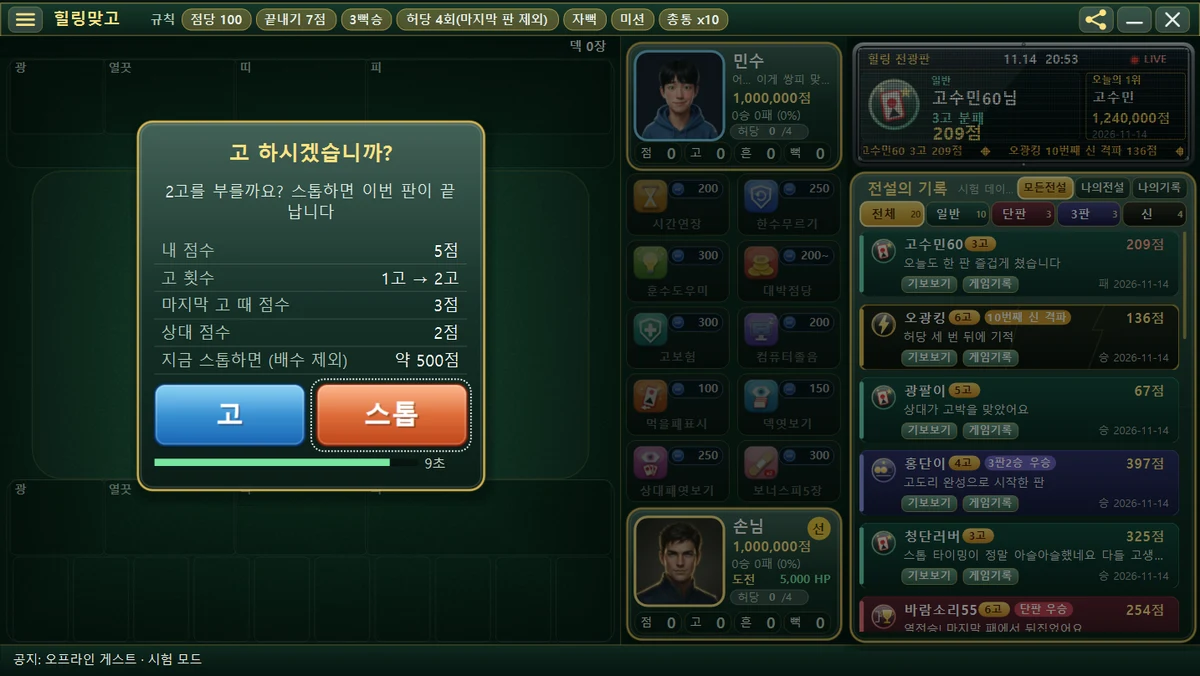
When your score reaches the finish score (7 pts) or more and is higher than at your last Go, it asks ‘Go?’. On the last 10 moves it doesn’t ask and settles right away.
| Row | Meaning |
|---|---|
| My score | The points I’ve collected so far |
| Go count | The Gos you’ve called so far, and the count if you call Go now (e.g. 1 Go → 2 Go) |
| Score at last Go | Your score when you called Go just before |
| Opponent’s score | The opponent’s score right now |
| If you Stop now (without multipliers) | The approximate score you’d get if you finished now. Penalties (bak) and multipliers are not included in this number. |
- [Go] — you keep playing. If your score rises, you can earn more, but it can get risky if the opponent scores.
- [Stop] — you win and end this round. It gets settled.
- On the keyboard, Go = G or 1, Stop = S, 2 or Esc. If you don’t choose within 10 seconds, it becomes Stop.
2. Choose-a-card-to-capture pop-up
When there are two cards of the same month as the card you played on the table, this window asks which one you want to capture. If the two cards are the same kind, the game picks for you without this window.
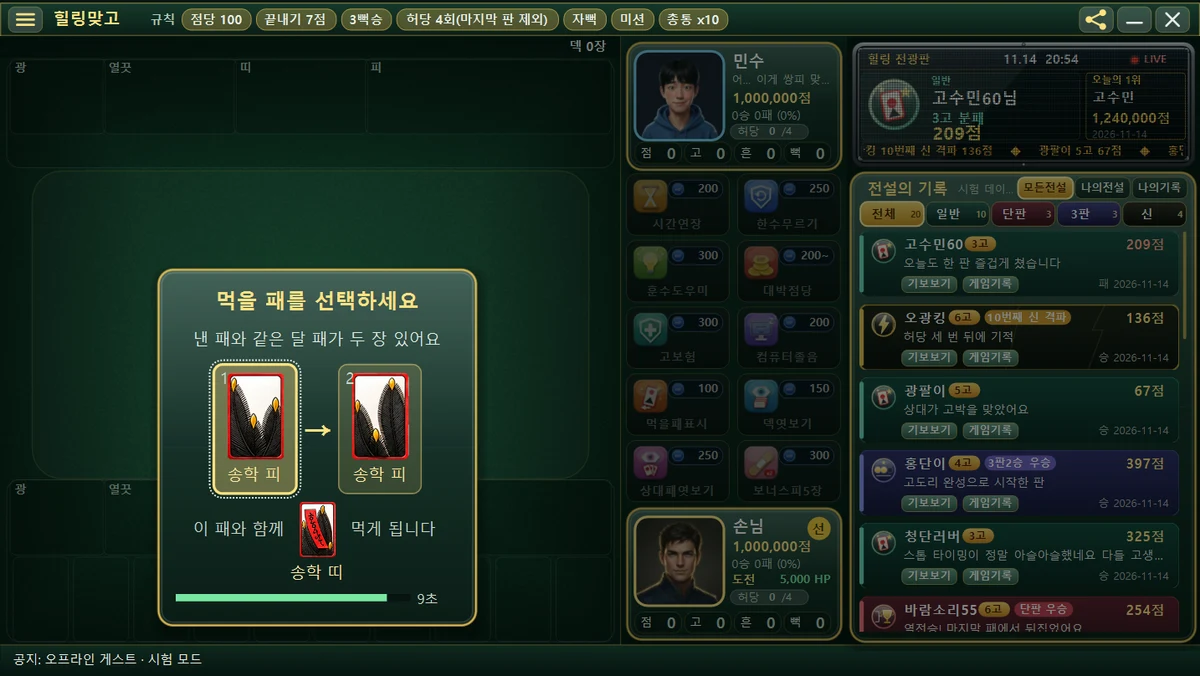
Click the card you want to capture, or press 1 · 2 or ← → on the keyboard. As in the picture, the lower part shows in advance which card you’ll capture together with the one you choose.
3. Shake question pop-up
If you hold three cards of the same month and that month isn’t on the table, you can ‘Shake’. The window shows those three cards and says ‘Showing the cards and shaking’.
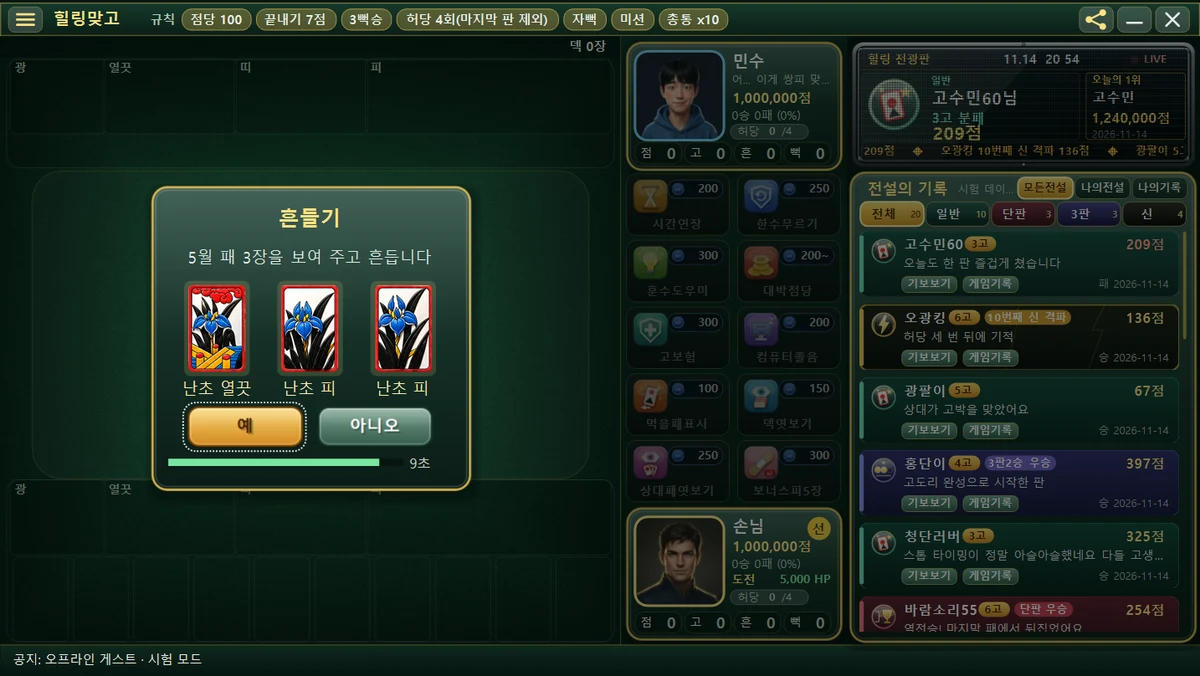
- [Yes] = shake. Keyboard Y · 1 · Enter. If time runs out, it automatically becomes ‘Yes’.
- [No] = don’t shake. Keyboard N · 2 · Esc.
- Shaking affects the score calculation. For the detailed rules, see the special rules article.
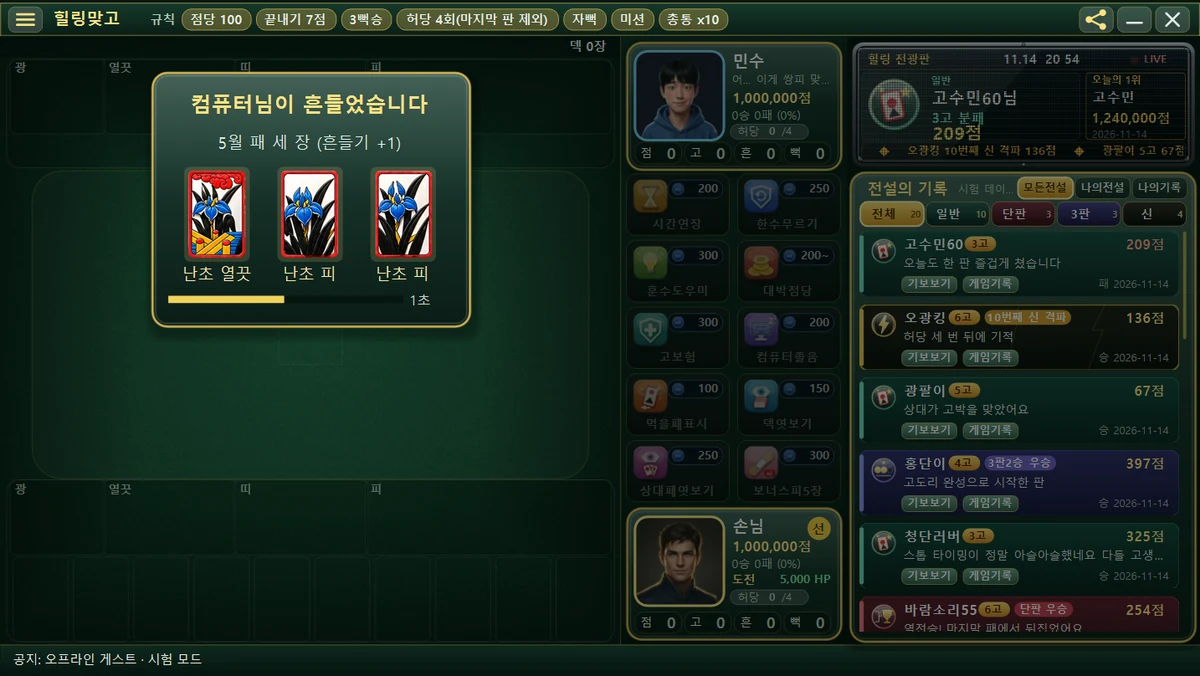
When the computer shakes
When the opponent shakes, a ‘Computer shook!’ window appears and shows those cards. There’s no button to press, and it closes by itself after about 2 seconds. It’s valuable information about what cards the opponent holds, so take a quick look.
4. Moving the Sep Animal (Chrysanthemum) pop-up
When you capture the Sep Animal (Chrysanthemum), it asks whether to move this card to Double Junk. If you move it, it counts as two Junk cards (Double Junk); if you leave it, it counts toward your Animal score.
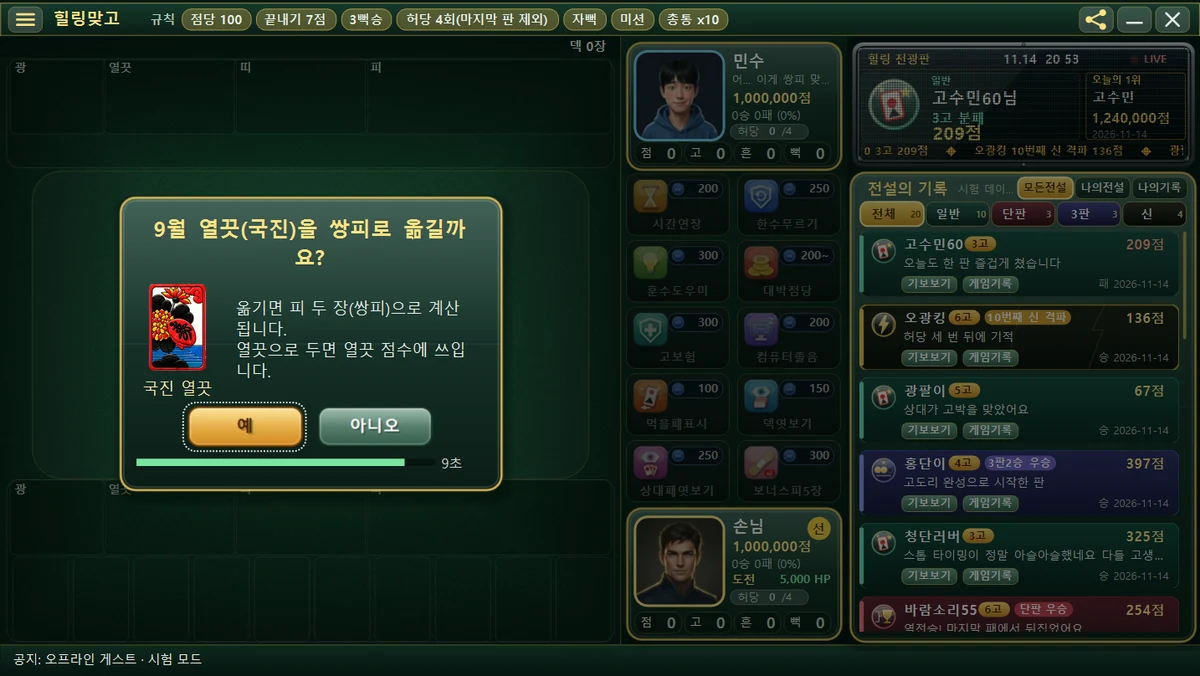
[Yes] / [No] use the same keys as the Shake question (Y · N). Which choice is better depends on the cards you hold.
5. Chongtong notice
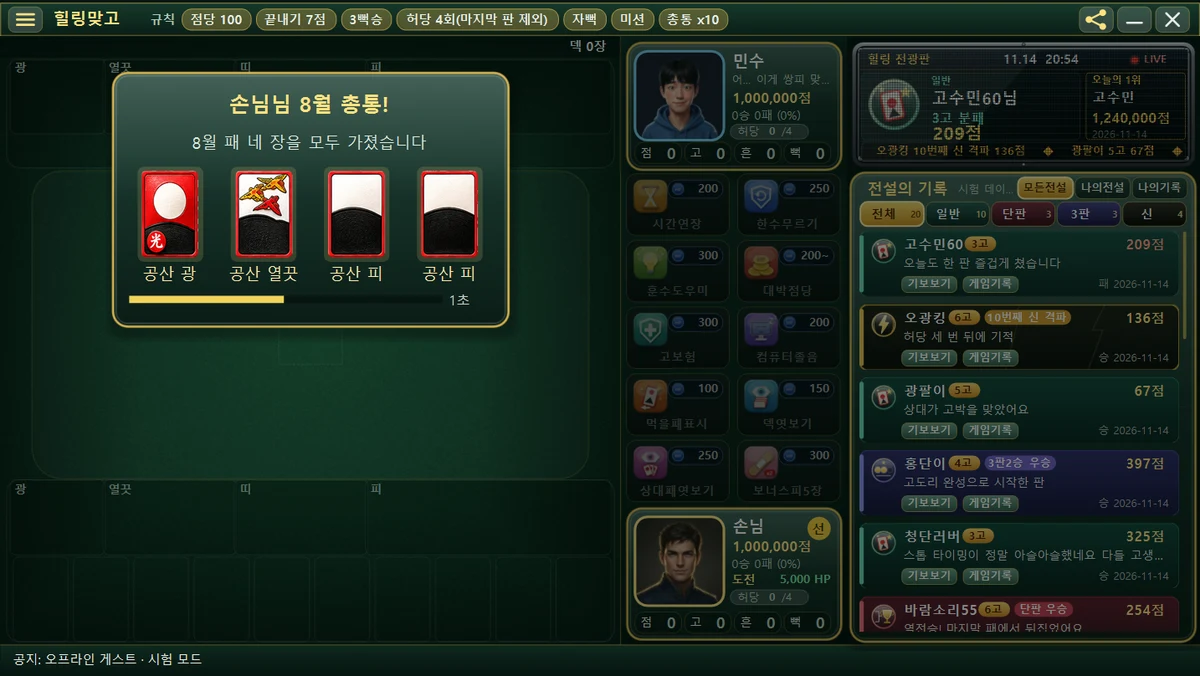
If the hand you were first dealt has four cards of the same month, that person wins right at the start with a ‘Chongtong’. A window like ‘(Name): Month 8 Chongtong!’ then appears and shows those four cards. It closes by itself after about 2 seconds.
6. Round result pop-up
When a round ends, the score breakdown appears along with a win-or-lose title (such as ‘Congratulations! You won’).
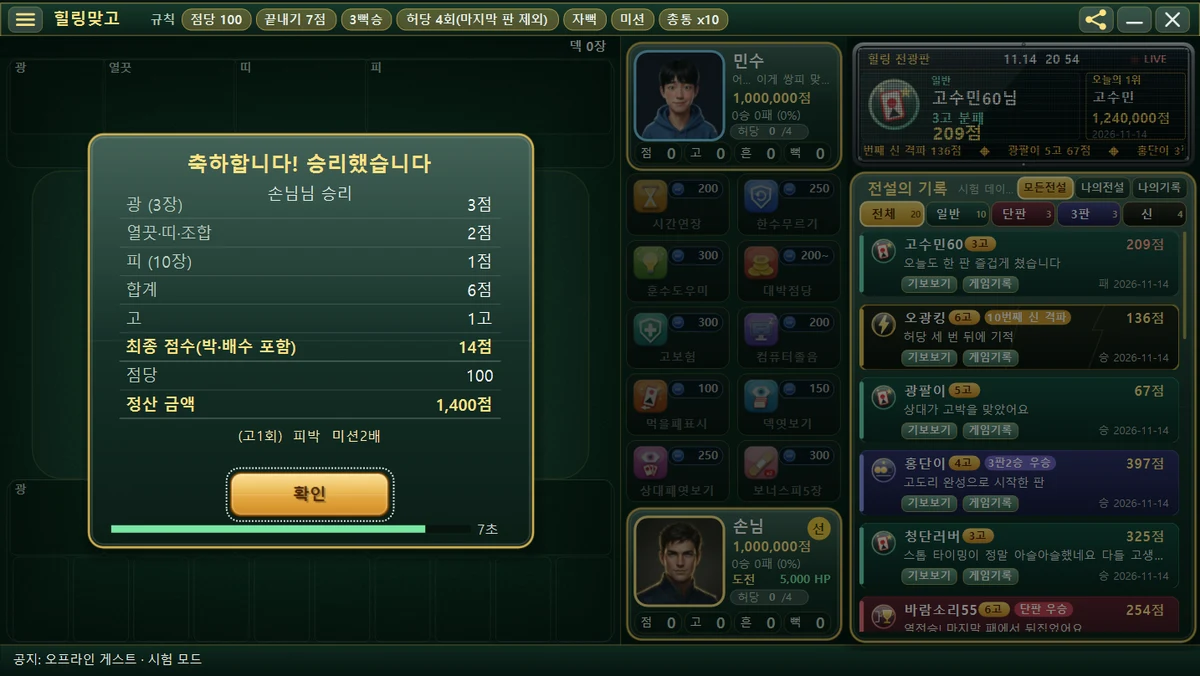
| Row | Meaning |
|---|---|
| Bright / Animal · Ribbon · Combination / Junk | Points earned by type (the number in parentheses is the number of cards captured) |
| Total | All the points above added together |
| Go | Points added for each Go you called |
| Final score (including penalties and multipliers) | The score with both penalties (bak) and multipliers applied |
| Point rate | How many points each 1 score point counts for |
| Settlement | Final score × point rate. The points that are actually exchanged |
The small text at the very bottom (in the picture, ‘(1 Go) Junk penalty, Mission ×2’) is a label for the things that affected the score. To close it, press [OK], or Enter · Space · Esc; if you leave it, it closes after 8 seconds. How the calculation works is covered in the complete guide to score calculation article.
7. Item and gift pop-ups
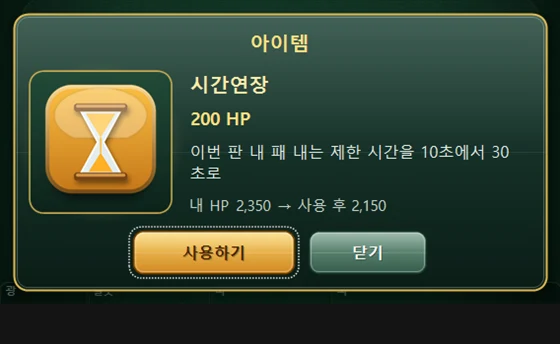
Confirming item use
When you tap an item slot, a window appears showing at a glance the item’s picture, name, price (HP), effect description, and ‘My HP ○ → ○ after use’. The item is really used only when you press [Use]; if you press [Close], nothing happens.
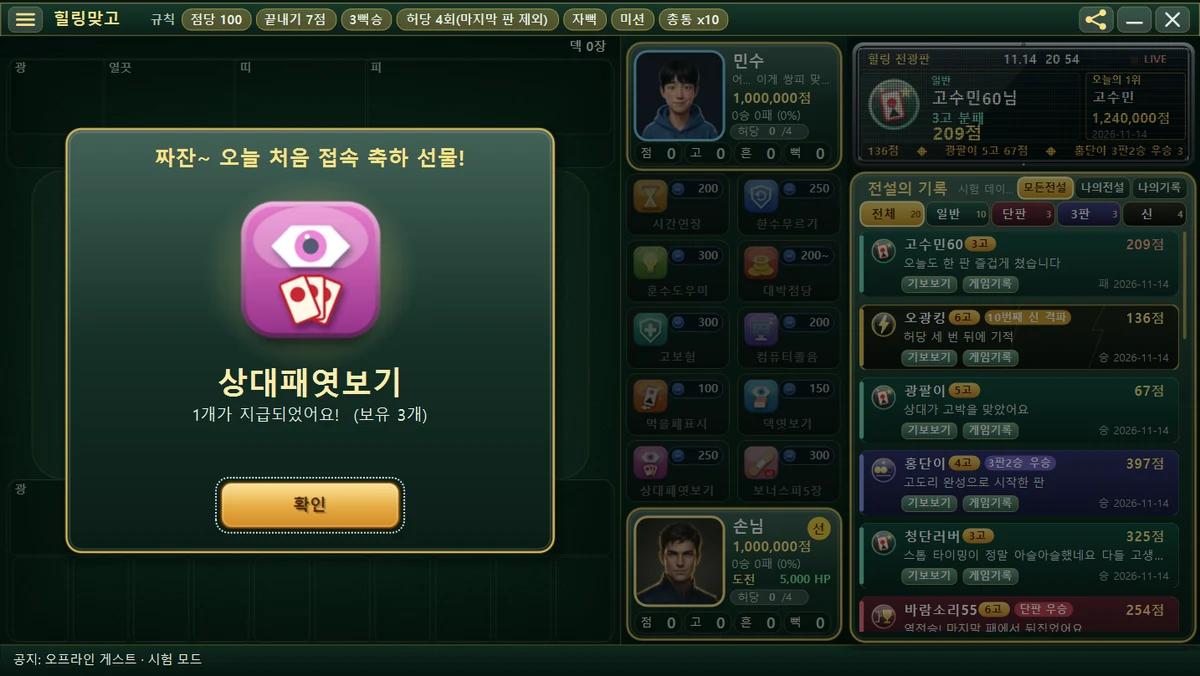
Daily gift
The first time you connect on a day you log in, a ‘Ta-da! A gift for your first login today!’ window appears and you receive 1 item. Press [OK] to close it. You can receive it only once a day, and the item you received appears on the shelf as ‘×N’. For details, see the daily gift and score recovery article.
Score recovery ad
If your score is 0 when you try to start a round, a recovery notice may appear. When an ad is set up, pressing [Restore score] in the ad window after a certain time restores your score. If there is no ad or the internet is down, the game automatically refills you to 10,000 points.
Notices and events
When the server sends a new notice, a pop-up appears between rounds (when the start button is visible). Urgent notices can appear right away. So you don’t close it by accident, the buttons become clickable about 0.7 seconds after the window appears.
8. Summary table by pop-up
| Popup | Do I need to press something? | How it closes |
|---|---|---|
| Go/Stop | Yes (Go or Stop) | Stop if you don’t choose within 10 seconds |
| Choose a card to capture | Yes (click a card) | Closes when you choose a card (has a time bar) |
| Shake question | Yes (Yes/No) | ‘Yes’ when time runs out |
| Moving the Chrysanthemum | Yes (Yes/No) | Same as the Yes/No keys |
| Computer shook | No | Automatically after about 2 seconds |
| Chongtong notice | No | Automatically after about 2 seconds |
| Round result | [OK] | Automatically after 8 seconds |
| Confirming item use | [Use] or [Close] | Esc |
| Daily gift | [OK] | — |