HealingMatgo controls: play cards with a mouse click, Go/Stop shortcut keys
HealingMatgo is a game you can play almost entirely with the mouse. You don’t need the keyboard, but knowing a few keys lets you answer questions like Go or Stop faster. This article collects every control you need to play.
A note for anyone who played the older HealingMatgo: the new version does not have the hold-the-right-button feature (card-smash power). Only the left mouse button is used, and pressing the right button does nothing. The ‘card-smash’ look, where a card slams onto the table, is just an effect that plays by itself when you have a card to capture. You don’t control it.
1. Controls at a glance
| What you want to do | How |
|---|---|
| Play a card | On your turn, left-click a card in your hand |
| Choose Go / Stop | Click a button, or press G (Go) / S (Stop) on the keyboard |
| Yes / No questions | Click a button, or press Y (Yes) / N (No) on the keyboard |
| Choose which card to capture | Click a card, or press 1 / 2 or the arrow keys |
| Open the menu | Click ☰ at the top left |
| Use an item | Click a slot on the shelf → [Use] |
| Move or resize the window | Drag the title bar / drag the window edge |
You play cards only with a left mouse click. You can’t play a card with the keyboard.
2. Playing a card — left mouse click
When it’s your turn, move the mouse over a card in your hand. The pointer turns into a hand, and the card grows slightly and lifts up. Press the left button once in that state and the card goes to the table. You can play a card only while ‘Your turn’ is shown and the big 10-second countdown is running.
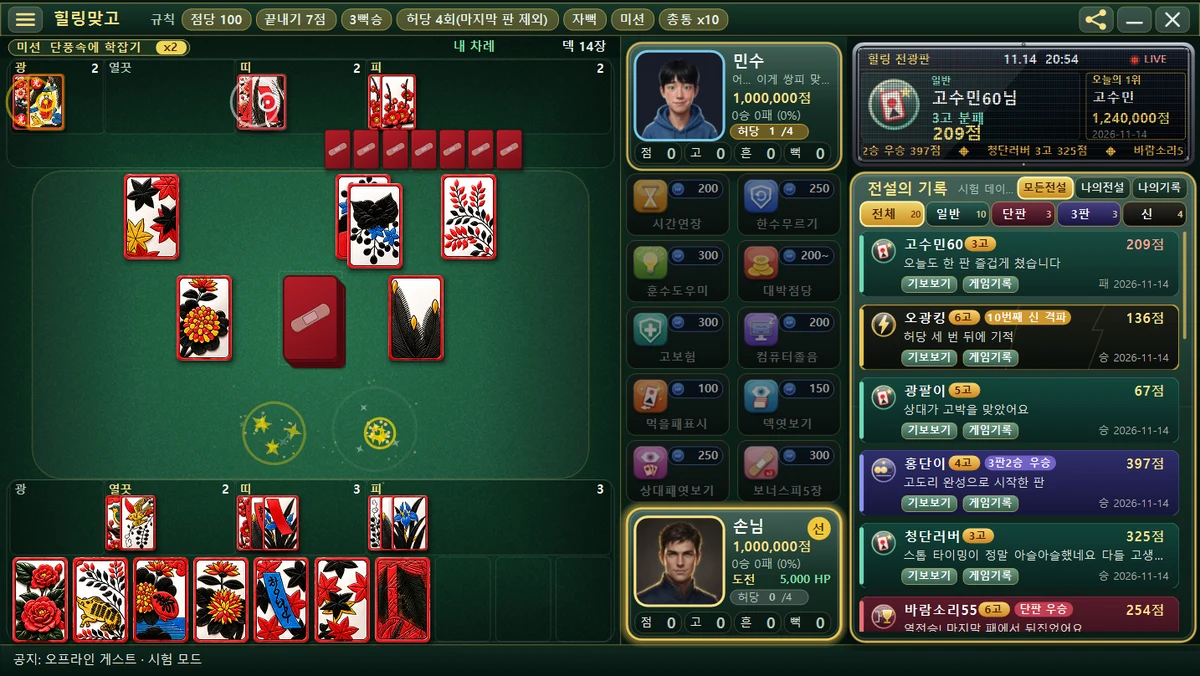
- Face-down cards left by a Bomb — after you play a Bomb, the pile of face-down cards that appears is also clicked to use. This move only flips a card; it doesn’t play one from your hand.
- Bonus Junk — if you have a Bonus Junk card in your hand, clicking it captures it right away and draws one more card from the deck. It doesn’t use up your turn.
- Bomb — it happens automatically, with no question. If you hold 3 cards of the same month and that month is on the table, playing one of them makes a Bomb.
- When time runs out — after 10 seconds, the game plays one card for you (a Bonus Junk if you have one; otherwise a card that matches one on the table; otherwise the first card).
3. Answering question pop-ups
When a question window appears in the middle of a round, you can press its buttons or use the keyboard. Each window has its own countdown.
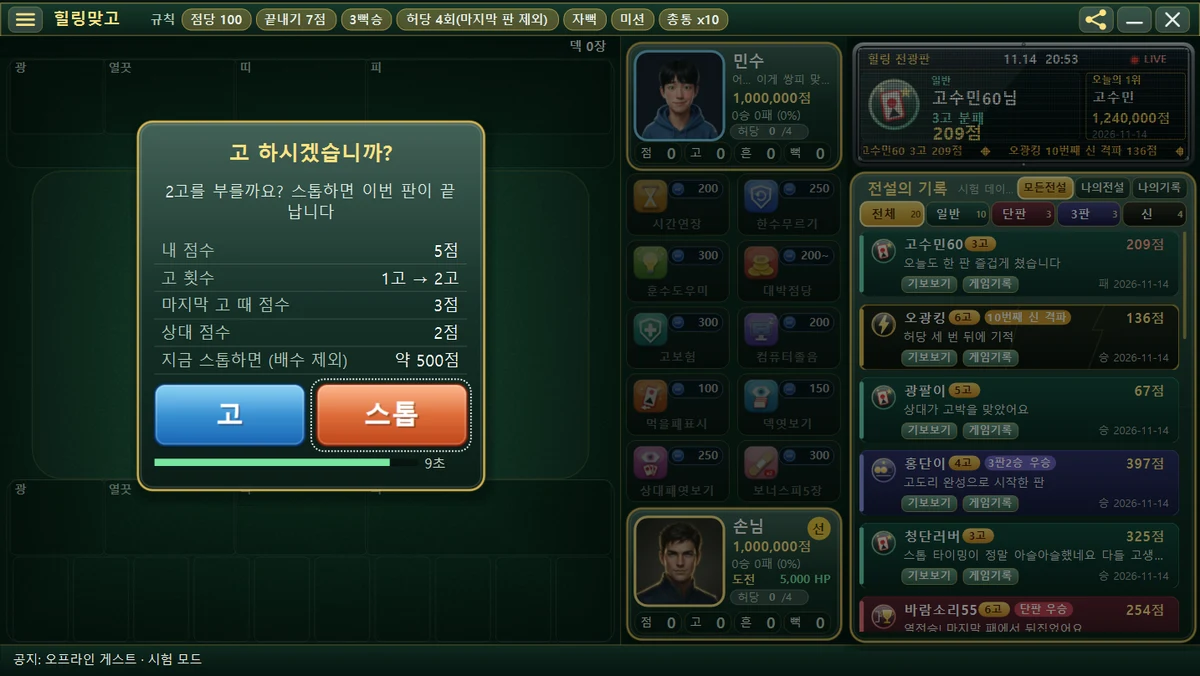
Go / Stop
| Choice | Keyboard | If time runs out |
|---|---|---|
| Go | G or 1 | — |
| Stop | S, 2 or Esc | If you don’t choose within 10 seconds, it automatically becomes Stop |
Yes / No questions (Shake, moving the Sep Animal)
| Choice | Keyboard | If time runs out |
|---|---|---|
| Yes | Y, 1 or Enter | Treated as ‘Yes’ |
| No | N, 2 or Esc | — |
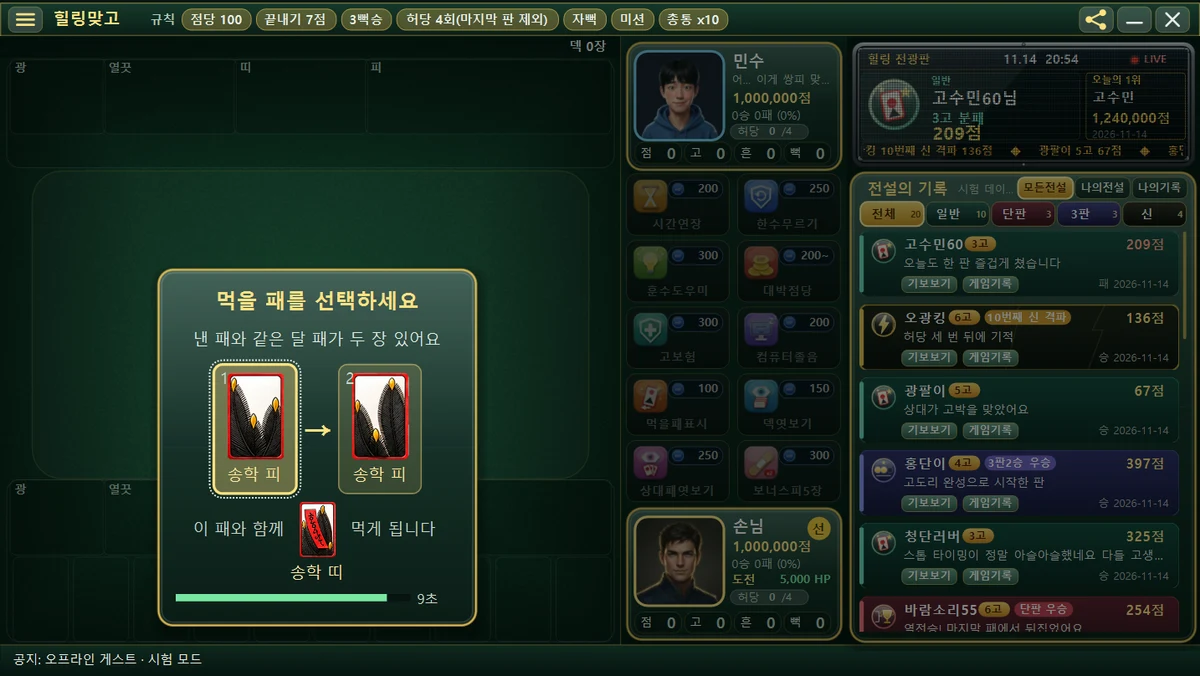
Choose which card to capture
This appears when there are two cards of the same month as the card you played on the table. Click a card, or press 1 · 2 or ← → on the keyboard. If the two cards are the same kind, the game picks for you without a question (Double Junk first).
Notices that close by themselves, and the result window
- The Chongtong notice and the ‘Shook’ notice close by themselves after about 2 seconds.
- Close the round result pop-up with the [OK] button, or with Enter · Space · Esc. If you leave it, it closes after 8 seconds.
4. Menu and window controls
When the ☰ menu is open
| Key | What it does |
|---|---|
| ↑ ↓ or Tab | Move between items |
| Enter or Space | Run the selected item |
| Esc | Close the menu |
Clicking an empty spot outside the menu closes only the menu and doesn’t touch the round below. The menu also closes if you click another window or minimize the window. For what each menu item does, see the ☰ menu settings article.
When using an item
Clicking a shelf slot opens a confirmation pop-up. With the keyboard, use Enter/Space to select, Tab or ← → to move, number keys 1–9 to pick an option (Big Point Rate), and Esc to close.
Choosing a character
Click the face picture → click the character card you like → [OK]. Esc closes it. You can only do this before a round starts.
Window size and position
- Drag the title bar with the mouse to move the window.
- Drag the edge of the window to resize it. The screen’s proportions stay the same (leftover space is filled with blank bands).
Scrolling the list
Turn the mouse wheel over the Hall of Legends list on the right to scroll smoothly. When you reach the end, it loads more.
5. Log-in screen and more
- Log in: in the password box, Enter = Log in.
- On the log-in screen, Esc = quit the game (cancel). Use it when you opened the game and want to close it right away.
- The shortcut keys for the game-record window (Ctrl+O, arrow keys, Space, F) are covered separately in the game-record window article.
You can’t give up with Esc during a trial. Each trial uses different keys: 1–4 for remembering the order, Space for rhythm and timing, the arrow keys for sweeping, and Space for rapid tapping and holding out. For details, see the 10 Trials of the Gods article.