HealingMatgo game screen guide: every button and display at a glance
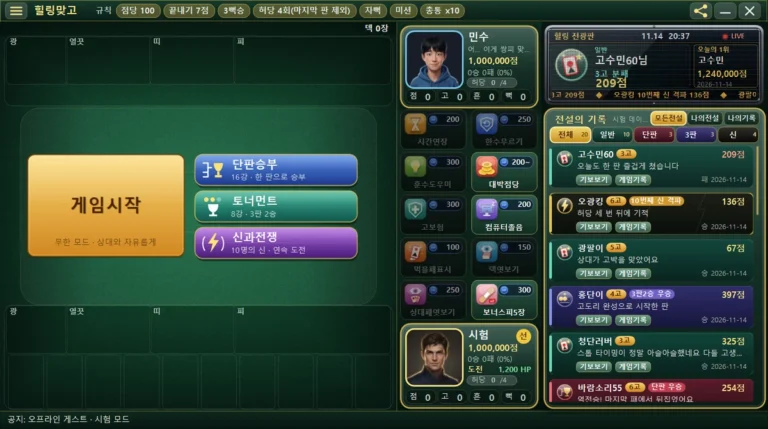
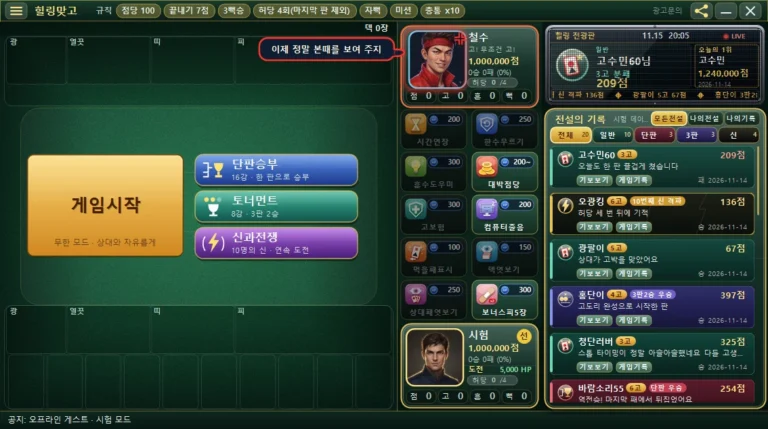
When you first open HealingMatgo, there are so many buttons and texts that you may not know where to look. Don’t worry. The screen is divided into three big parts: the board on the left · the info column in the middle · the ticker and records on the right. In this post we go through the buttons and displays on the game screen one by one, from the top.
The names (‘Guest’, ‘Minsu’) and scores in the pictures are from a test screen made for explanation. They may differ from your actual screen.
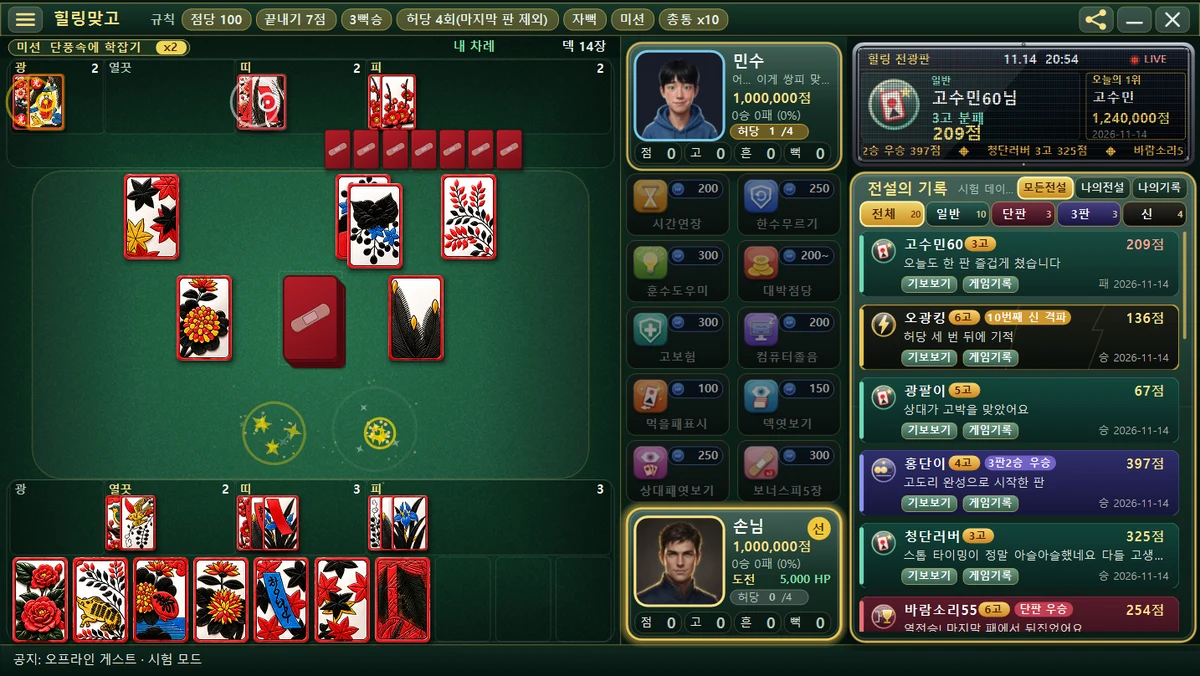
1. Top title bar – menu, rules, language, ad inquiries, share, window controls
This is the single line at the very top of the screen. It is not the standard Windows title bar but one drawn by the game, so dragging this line with the mouse moves the window.
| Spot | Look | When you click |
|---|---|---|
| ☰ on the left | 3 horizontal lines | Opens and closes the menu window. Sound and speed settings, opponent chat settings, My info, Help, Replay guide, and Quit game are all here. |
| ‘HealingMatgo’ text | Gold letters | You can move the window by dragging this line. |
| ‘Rules’ chips | Several small pill shapes | These are not buttons to press but a summary of this game’s rules. You usually see Point rate 100, Finish score 7, 3-Ppeok Win, Whiff 4 times, Self-Ppeok, Mission, and Chongtong x10. |
| Language button (KO·EN·JA) | Small text button | It is to the left of ‘Ad inquiries’. Click it to open the ‘Language’ window where you choose 한국어, English or 日本語. It shows only when there is a language you can choose. (How to change the language) |
| Ad inquiries | Small, faint text | When you hover over it, an underline appears and it turns gold. Click it and the Contact page of the website opens. (About ads) |
| Share icon | 3 dots joined by lines | The ‘Share with friends’ window opens. When you hover over it, a ‘Share with friends’ speech bubble appears. |
| Server connection dot | Small circle | Green means online, gray means offline. Hover over it to see the connection status message. It shows only when a profile is logged in and the server features are on. |
| Minimize ─ | Horizontal line | Shrinks the window down. When minimized, the sound is turned off too. |
| Close ✕ | Red X | The process of ending the game begins. It may not close right away, and a confirmation window may appear first. |
The ‘Rules’ chips are an information board that shows which rules are on for this round. They are not buttons to change anything, so feel free to just read them.
2. Left board – where the cards are placed
This is where you play the real Hwatu game. From top to bottom, it is organized like this.
- Top info strip – on the left is the round’s Mission chip (e.g. ‘Mission Catching the Crane in the Maples x2’), and on the right ‘Your turn’ or ‘Opp. turn’ and ‘N in deck’ (cards left) are shown.
- Opponent area (top) – the opponent’s hand is lined up face down, and above it the cards the opponent has captured are sorted into four boxes: Bright, Animal, Ribbon and Junk. Each box shows the number captured.
- Table (center) – the 12 spots where table cards are placed, and in the very middle there is the pile of cards (deck). As the deck shrinks, the pile gets thinner.
- Your area (bottom) – your four boxes of captured cards, and at the very bottom your 10 hand cards are laid out large. When you hover over a hand card, it grows a little and rises.


Your turn countdown
When your turn comes, a big round number appears at the upper right of your hand. The time limit is 10 seconds. At 4 seconds or less, the number turns red, the edges of the screen blink red, and a ticking sound plays. At 0 seconds, the game plays one card for you. It plays a Bonus Junk if you have one; if not, a card that matches the table; and if there is none, the first card. If you use the ‘Extra Time’ item, that round is extended to 30 seconds.
While a window such as a Go/Stop question, the menu or the share window is open, your 10-second turn timer does not run. You can take your time reading. (Question popups like Go/Stop have their own separate time limit. For details, see the How to read in-game popups post.)
Start buttons
Before a round starts, there is a big gold ‘Start game’ button (‘Endless · Play freely’) in the middle of the table, and 3 small buttons side by side on its right.
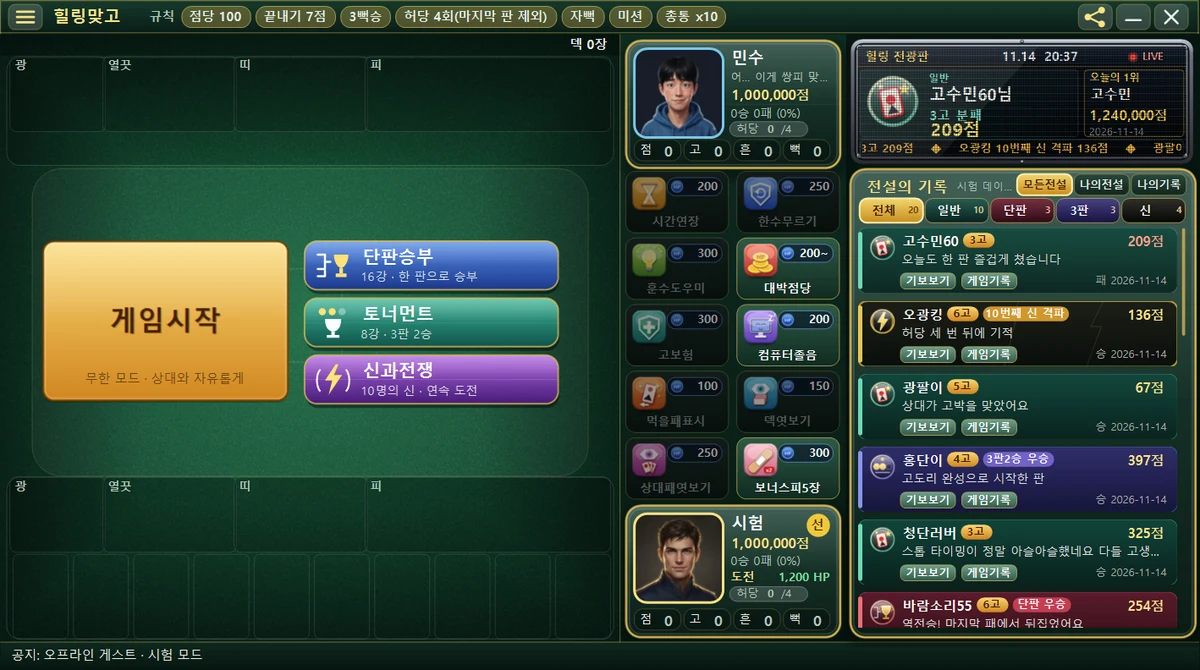
| Button | Description |
|---|---|
| Start game | Keep playing round after round freely against the opponent in the default mode (Endless). |
| Single Match | Top 16 bracket, decided in one round. |
| Tournament | Top 8 bracket, best of 3 rounds in each match. |
| War of the Gods | Take on 10 gods back to back. |
For details about the modes, see the 4 game modes compared post.
Things that briefly appear over the board
- Small notice text (toast) – appears at the lower center of the board for about 2.5 seconds and disappears. Up to 3 can stack. An example is ‘Extra Time! You have 30 seconds to play a card this round’ in the picture.
- Bold event text – when something like Jjok, Sweep, Godori or Ppeok happens, it pops up in the middle of the screen and fades. When you call Go, a large ‘N Go!’ also appears.
- Speech bubble – a short line to you or the opponent, such as a Whiff warning, appears near the player’s spot for about 2.6 seconds and disappears.
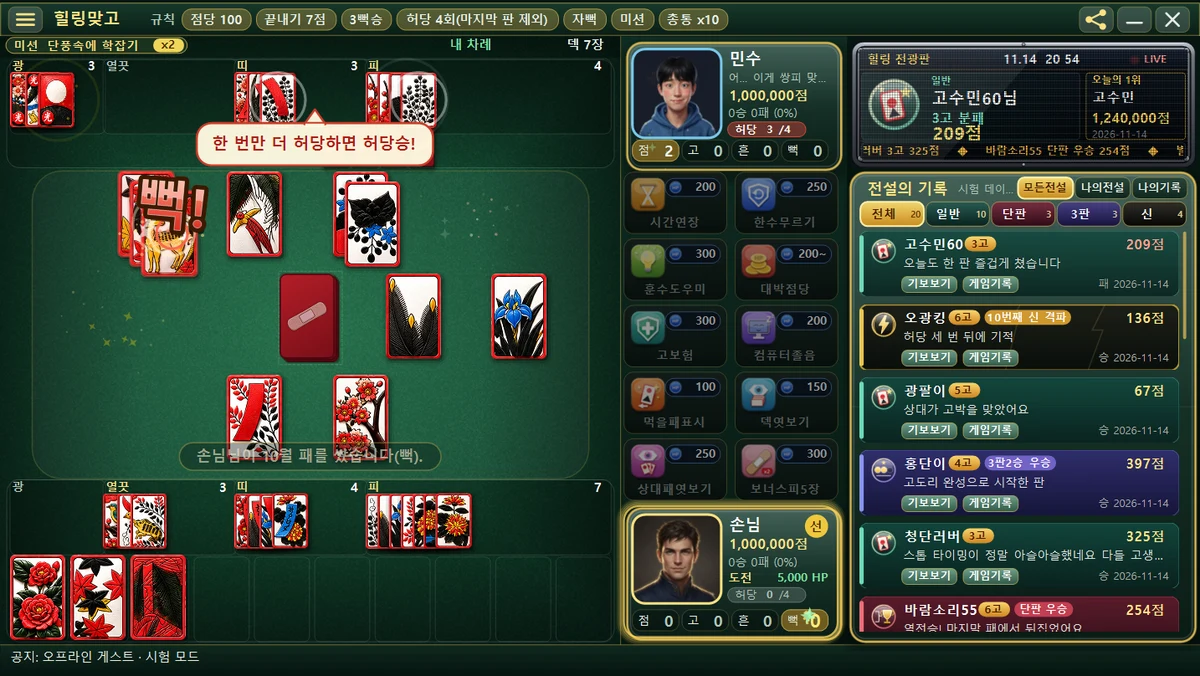
3. Middle info column – player cards and the item shelf
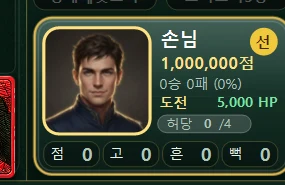
This is the single vertical line to the right of the board. From the top, it goes: opponent card, item shelf, your card. How to read score and HP is explained in detail in the How to read the scoreboard and info column post. Here we cover only what you can do by clicking.
- Opponent and your portrait (face picture) – you can click them only before a round starts (standby). Click your face and the ‘Choose your character’ screen opens; click the opponent’s face and the ‘Choose an opponent’ screen opens. When you hover over it, the word ‘Swap’ appears. Choosing the opponent works only in Endless mode; in other modes the bracket decides the opponent.
- Item shelf – 10 items are lined up in 2 columns and 5 rows. Each slot shows the picture, name and price (HP), and if you have received any as a gift, a red ‘x N’ mark is attached to the picture. Click a slot and a confirmation popup with a description and a [Use] button appears.
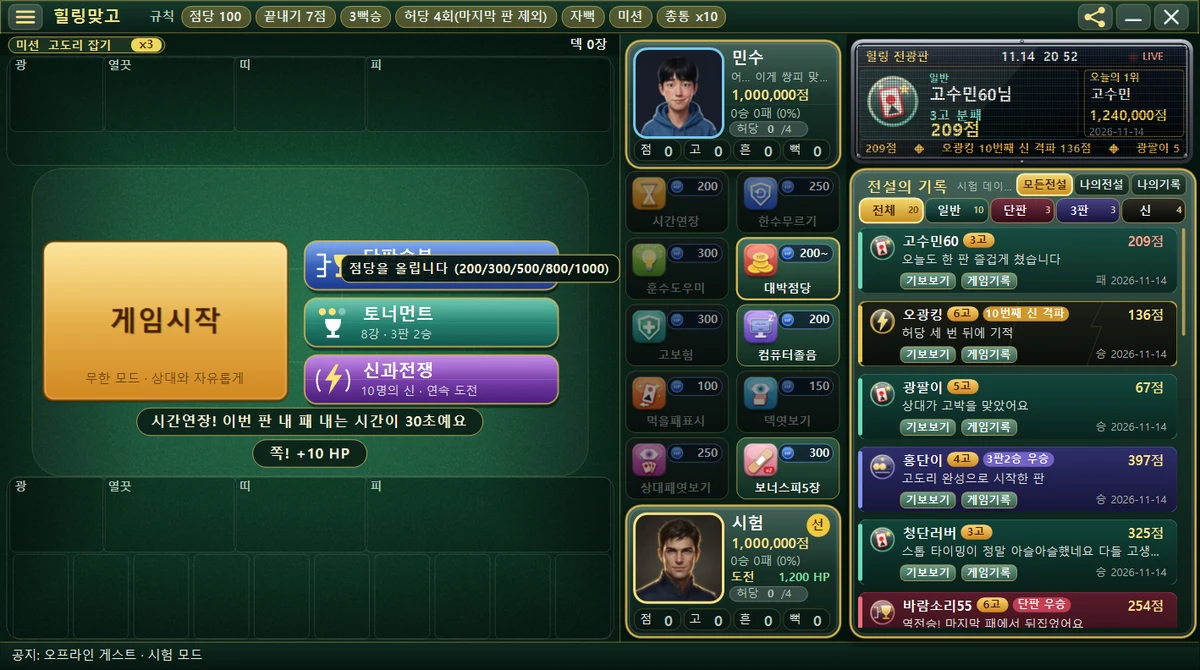
A slot that cannot be used looks dark, and when you hover over it, the reason (for example, ‘Can only be used on your turn’) or an effect description appears. In mode rounds such as Single Match, Tournament and War of the Gods, the shelf is locked.
4. Right column – the ticker and the Hall of Legends
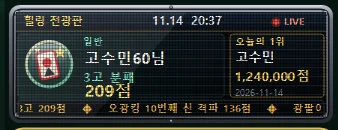
- Healing Ticker (top) – shows a clock, a red ‘LIVE’ mark, and “Today’s #1” (nickname, score, date). When a new Hall of Legends record is posted, text scrolls along the line below with a fireworks effect.
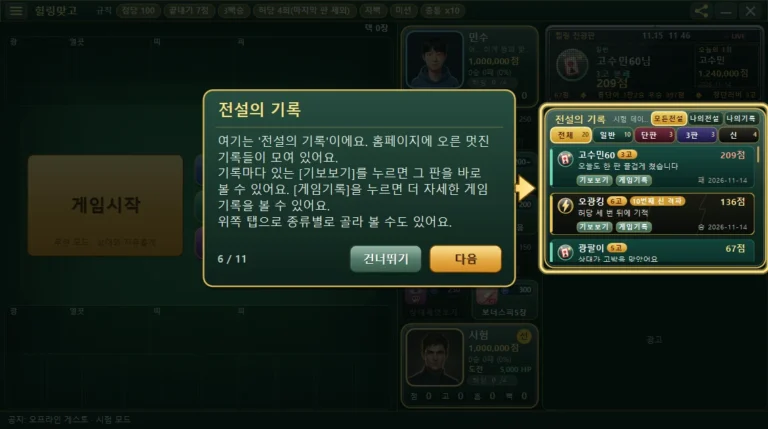
- Hall of Legends list – a collection of great rounds posted to the website. You can browse by the 3 range buttons at the top (All legends · My legends · My records) and the 5 category tabs (All · Normal · Single · 3 rounds · Gods). Each record card has a [Replays] button to watch that round again, and the [Records] button opens the website post. Scroll with the mouse wheel. If the server is not connected, an ‘Offline’ mark appears.
- Bottom strip – a thin information line at the very bottom of the screen (with the word ‘Notice’).
How to use the records screen is covered in the Hall of Legends and My records post, and how to use the game record window in the Game record window post.
5. Just remember this
- You play a card by clicking a hand card with the left mouse button on your turn. (For details, see the Mouse and keyboard controls post.)
- When you see the ‘Your turn’ text and the big number, play within 10 seconds.
- Click ☰ at the top of the screen to find the sound and speed settings and Quit.
- For the center popups (Go/Stop, choices and so on), you must answer the question for the round to continue.