How to Check for Updates in HealingMatgo, and How to Read Server Status and Notices
HealingMatgo tells you inside the game when a new version comes out and helps you download and install it yourself. You can also see whether you are well connected to the server using the small dot in the title bar. We have summed up how to check for updates, the server connection status and when notices appear.
1. When does it check for updates?
- It checks automatically when you start the game.
- When you want to check yourself, press Help & website → Check for updates in the ☰ menu. It checks in the same way as at startup.
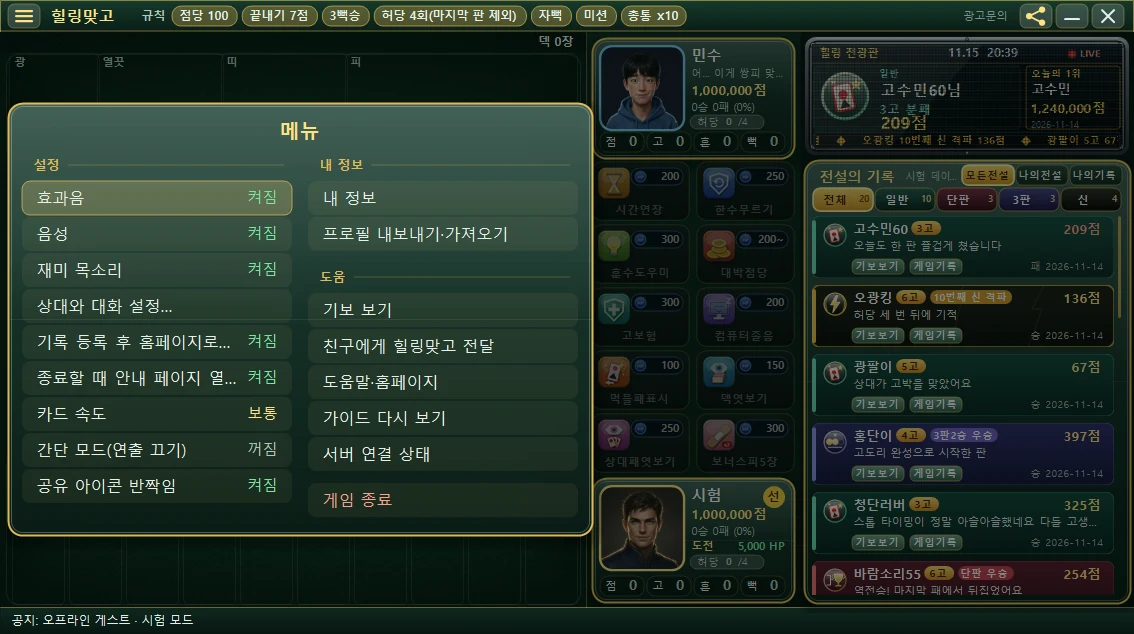
When you press “Help & website”, a selection window opens with four choices.
| Choice | What it does |
|---|---|
| View game rules | Opens the rules guide article on the website. Viewing the rules, the website and ad inquiries open in a small app window attached to the right side of the game, and in a new browser tab if that cannot be used. |
| Open website | Opens the HealingMatgo website (healingmatgo.com). |
| Ad inquiries | Opens the website’s contact page (ads guide). |
| Check for updates | Checks whether there is a new version. If there is none, it tells you “You’re up to date”. |
2. When there is a new version
When there is a new version, a window appears. There are two kinds of titles.
| Window title | Meaning | Button |
|---|---|---|
| A new version is available (version X) | An optional update. You do not have to do it now. | [Update now] [Later] |
| A required update is available (version X) | A required update. If you do not do it, you cannot start the game. | [Update now] (you cannot press Later) |
The window also shows the update notes. When you press [Update now], you see the progress step by step.
- Checking…
- Downloading (n/N)
- Preparing to install…
After the game checks that the downloaded files match its safe list, a separate update program replaces the files. You only have to wait.
A “Could not download the update” message appears. For a required update, a message tells you to check your internet connection and run the game again, so check that the internet is connected and start the game again.
3. Viewing the server connection status
The server is where Hall of Legends records are uploaded and fetched. You can see the status with the small dot in the title bar and Server connection status in the ☰ menu. When you press the item in the menu, a popup appears with this information.
| Item | What you see |
|---|---|
| Status | Online / Offline, or “Not in use (offline game)” |
| Last success | The time of the last successful connection to the server |
| Queue | The state of records waiting to be uploaded, in the format “N queued · N sent · N excluded” |
The message in the popup is this: ‘Offline rounds don’t appear in the Hall of Legends. Records that couldn’t be uploaded are retried automatically.’
- The server connection is made only when there is a logged-in profile and the server features are turned on.
- The connection is made once right after login and every 60 seconds after that.
4. Notices and event popups
While you are logged in, the game periodically checks the server for new notices (every 30 seconds by default, and the server sets it between 15 and 120 seconds). When there is a new notice, it appears as a popup between rounds, when the start button is visible. It does not interrupt you during a round. Urgent notices, however, appear right away.
The buttons in the popup can be pressed starting about 0.7 seconds after it appears. This is to prevent it from closing by accident when you are clicking somewhere else.
5. When you quit the game
The first time you quit in each session, a “Quit HealingMatgo?” confirmation window appears once (if you are in a round where the opponent has called 1 Go or more, the point-deduction notice appears instead). For how to tell a friend, see the article on sharing with friends.